Meal Logging
From the Brook+ home screen, tap Log in the upper-right corner and select Meals.
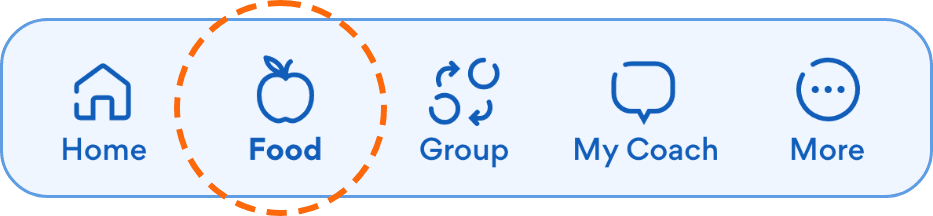
Alternatively, tap Food in the bottom bar to open your main Meals screen, then tap Add Meal.
Once there:
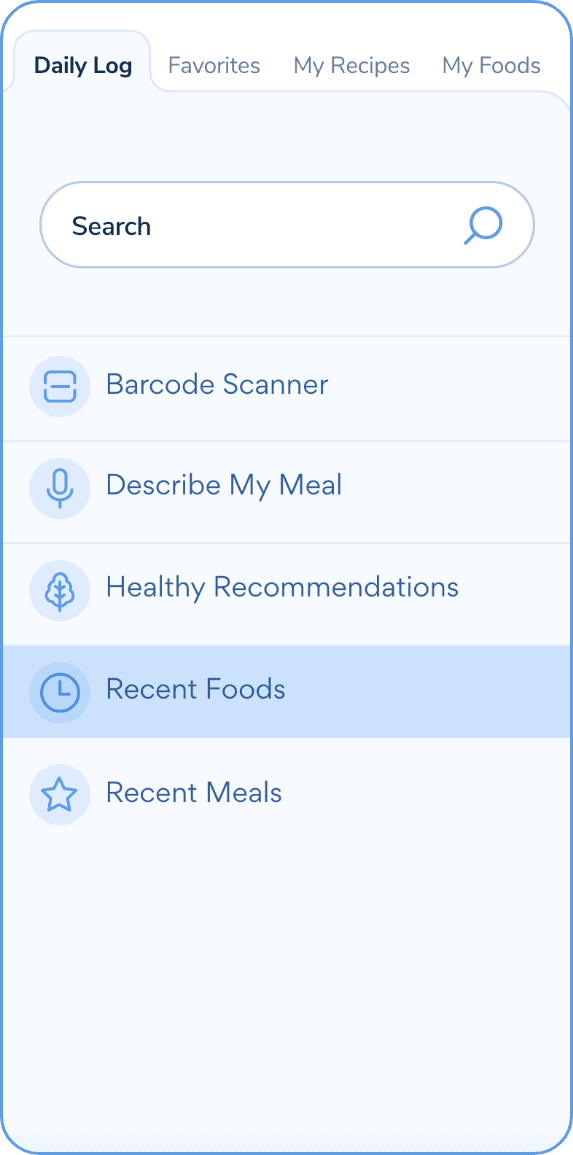
1. Add your first food item by searching for it, scanning a barcode, describing your meal (typed or spoken), or choosing from:
- Healthy Recommendations
- Recent foods
- Favorites
- My Recipes
- My Foods (Custom Foods)
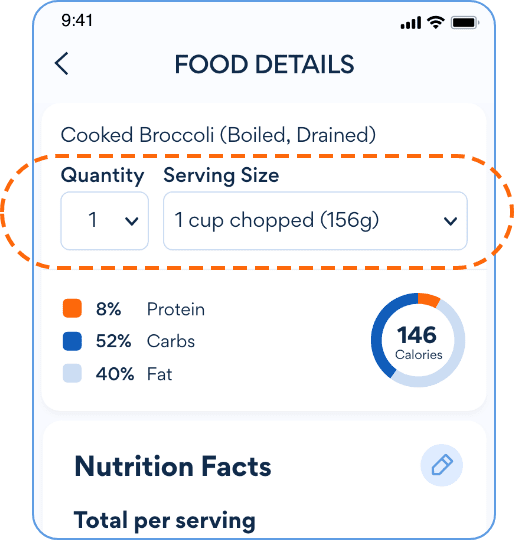
2. Adjust the quantity and serving size, or edit nutrition info if needed.
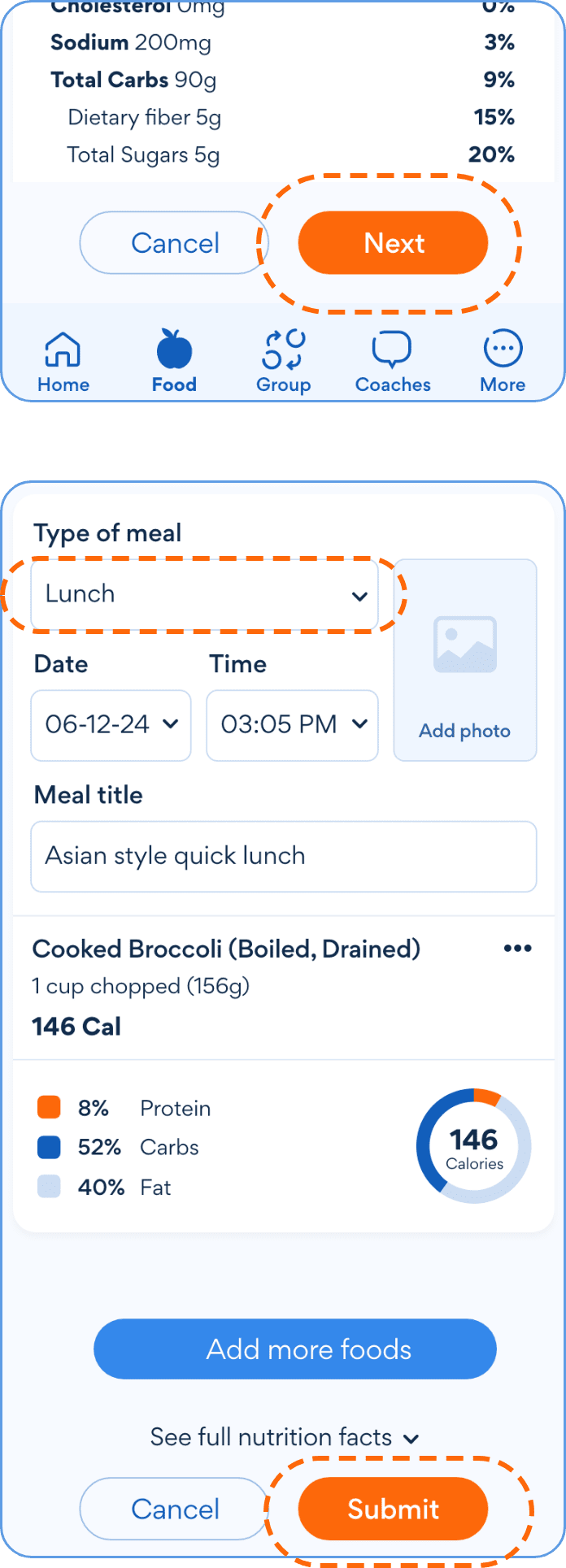
3. Tap Next to choose your meal type (breakfast, lunch, dinner, snack), edit the date/time, add a photo or title, and tap Submit to save your meal.
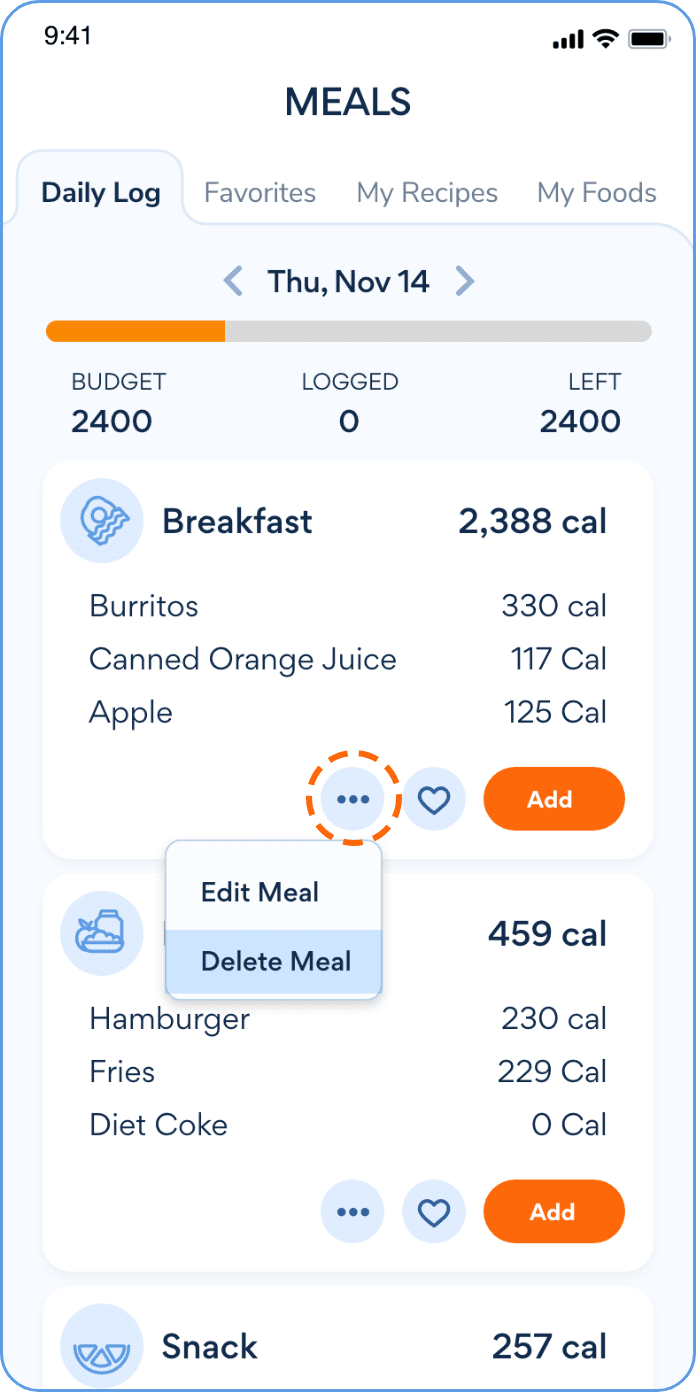
To edit or delete a meal:
- Go to your Daily Log screen and find the meal you want.
- Tap the three dots next to it.
- Choose Edit to make changes or Delete Meal to remove it.
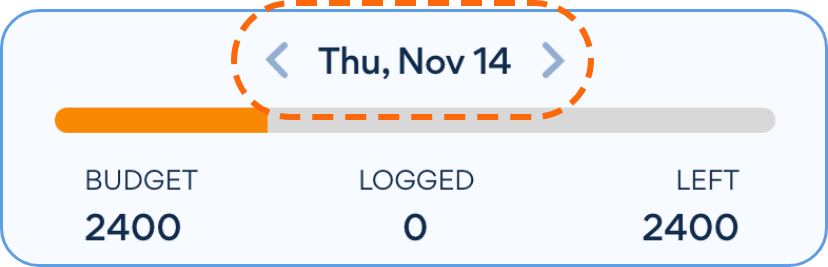
You can also navigate to other dates to edit or delete past meals.
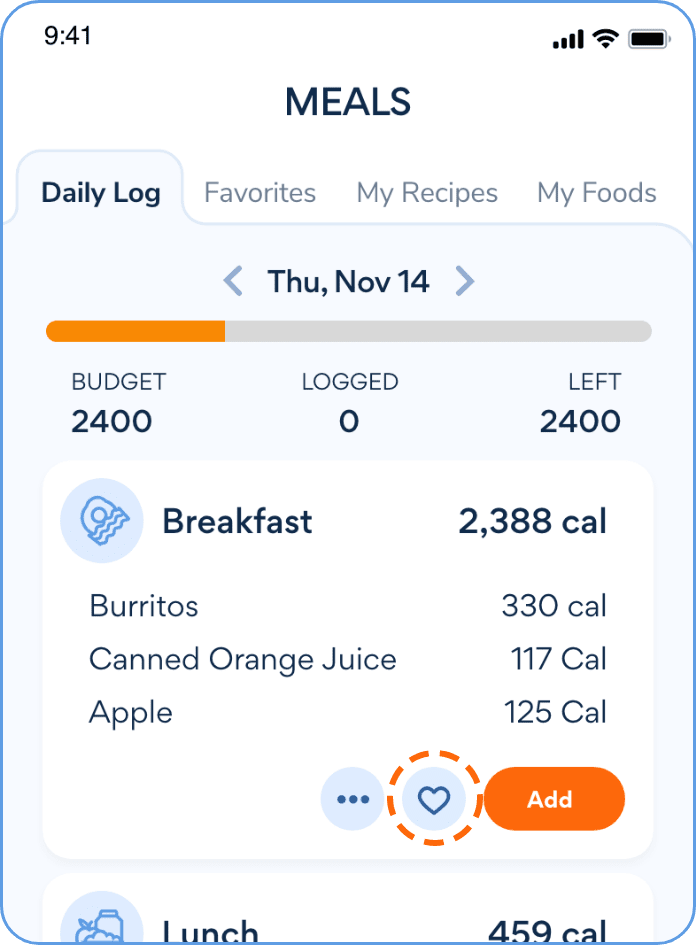
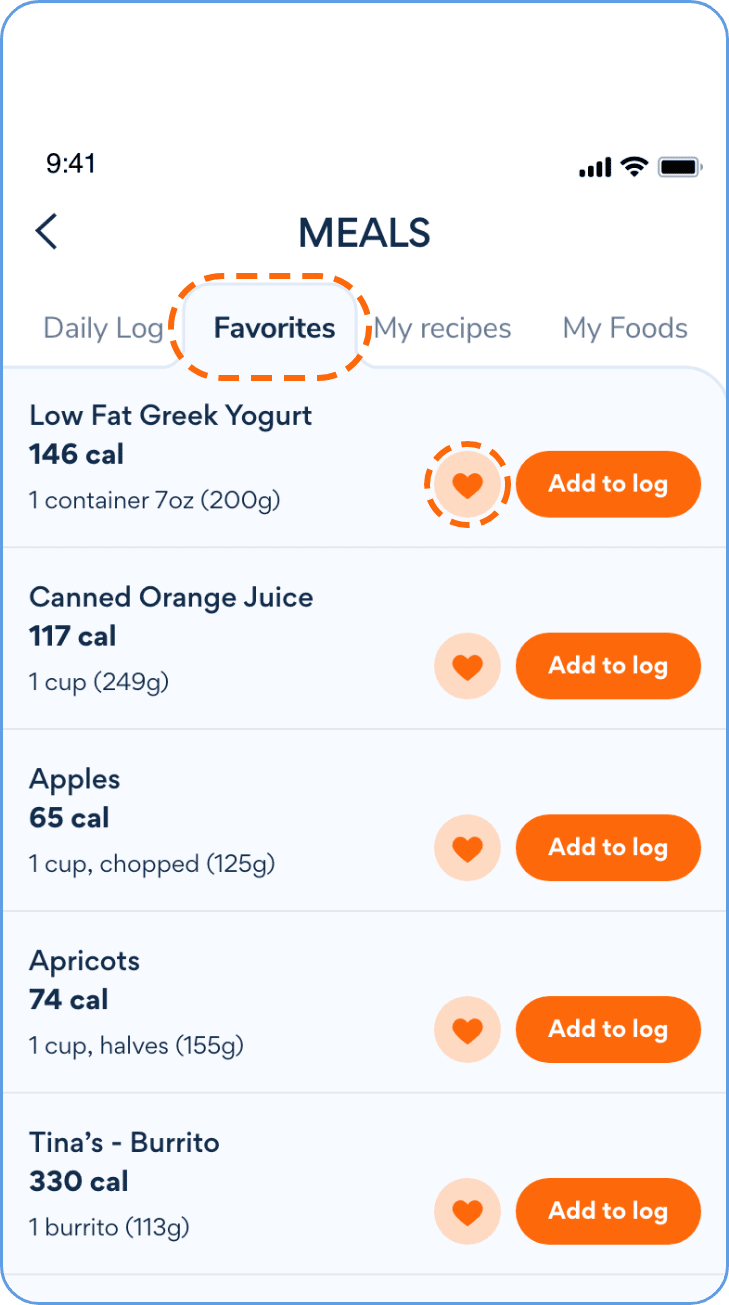
After logging a meal, tap the heart icon on the meal card to add it to your favorites.
To view your favorites:
- Go to your Favorites section.
- From there, you can add a favorite to a meal or tap the heart again to remove it.
To create a recipe:
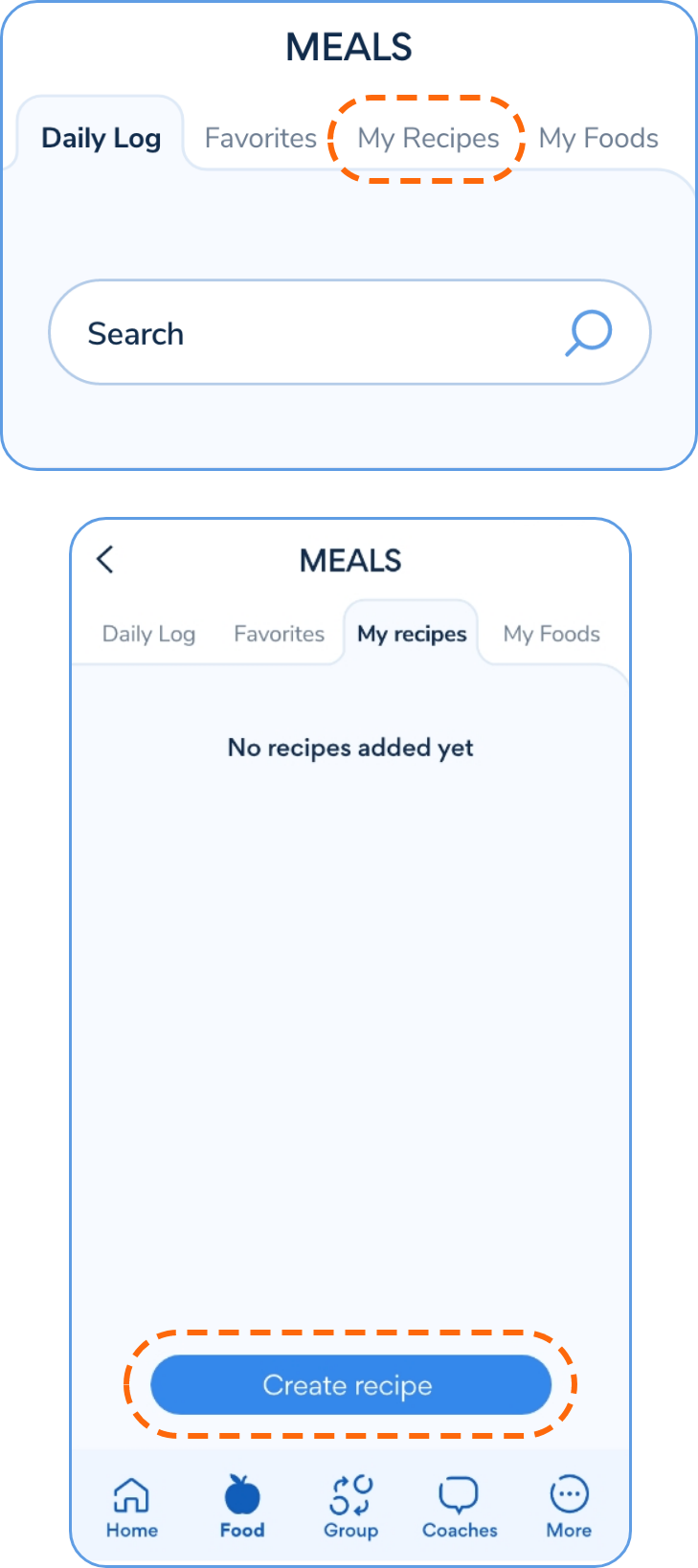
- From the Daily Log screen, tap My Recipes.
- Tap Create Recipe.
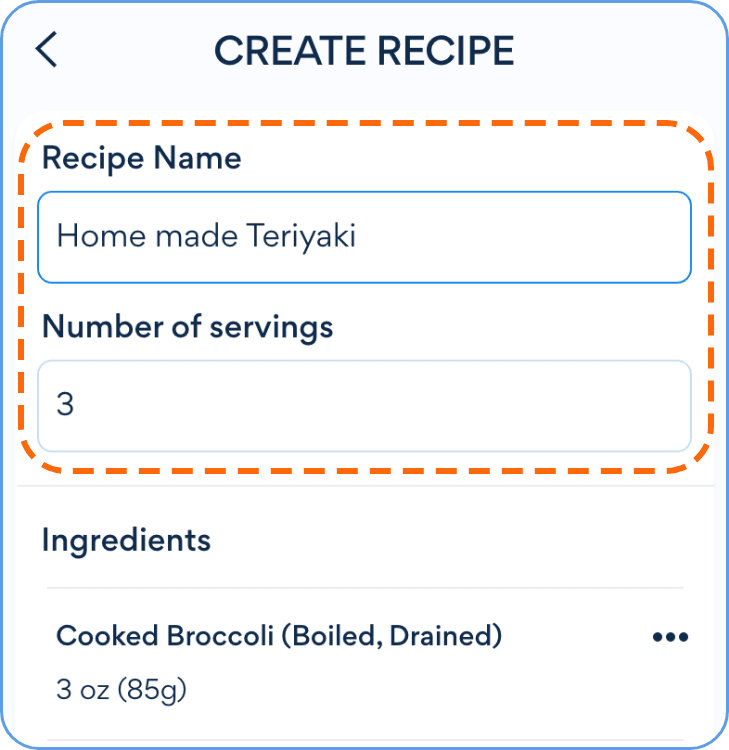
- Enter a name for your recipe and number of servings.
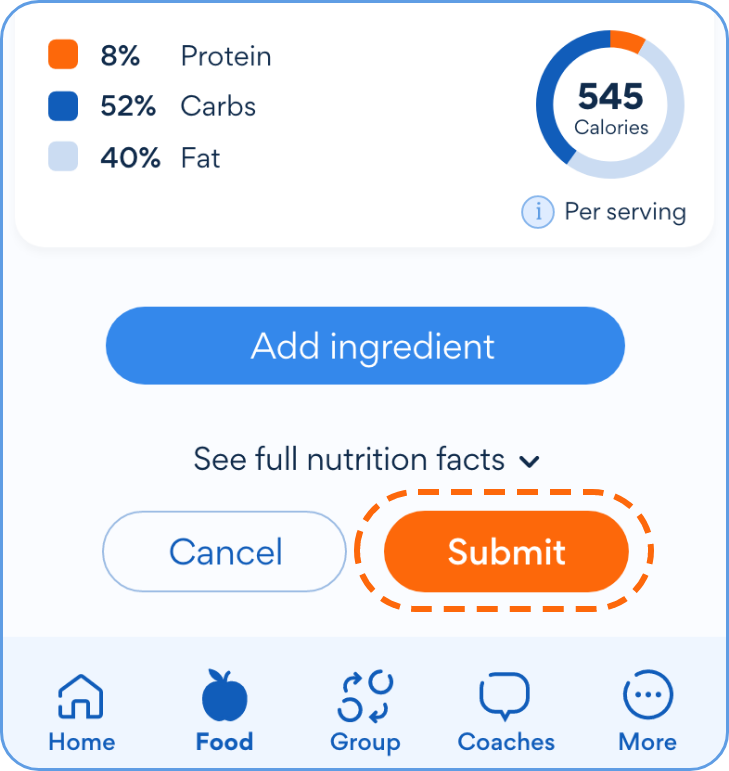
- Add ingredients just like you would for a meal.
- When finished, tap Submit to save.
From the My Recipes screen, you can:
- Tap the three dots to edit or delete a recipe.
- Tap Add to Log to record it as part of your daily meals.
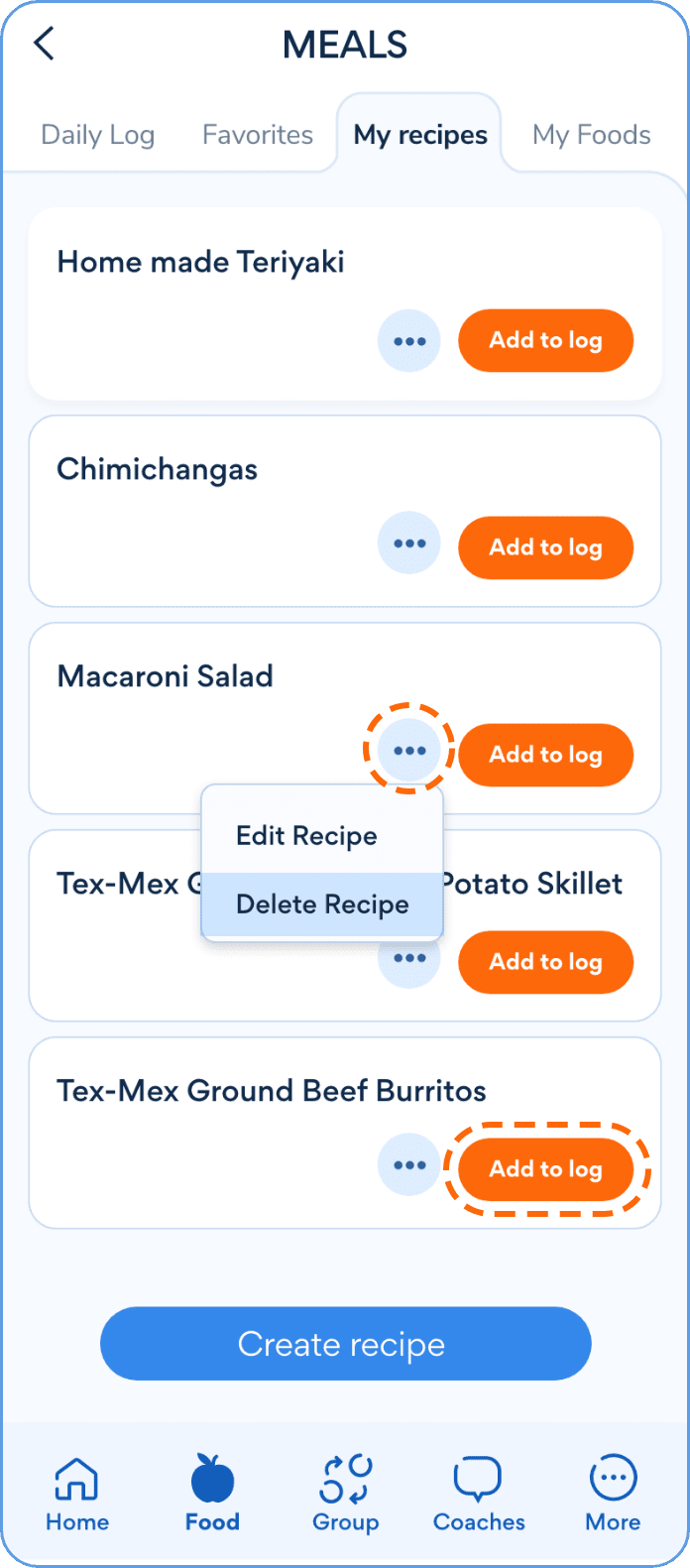
Note: You can't create or edit recipes while you're logging a meal—go back to the main Meals screen first.
If a food isn't in the database:
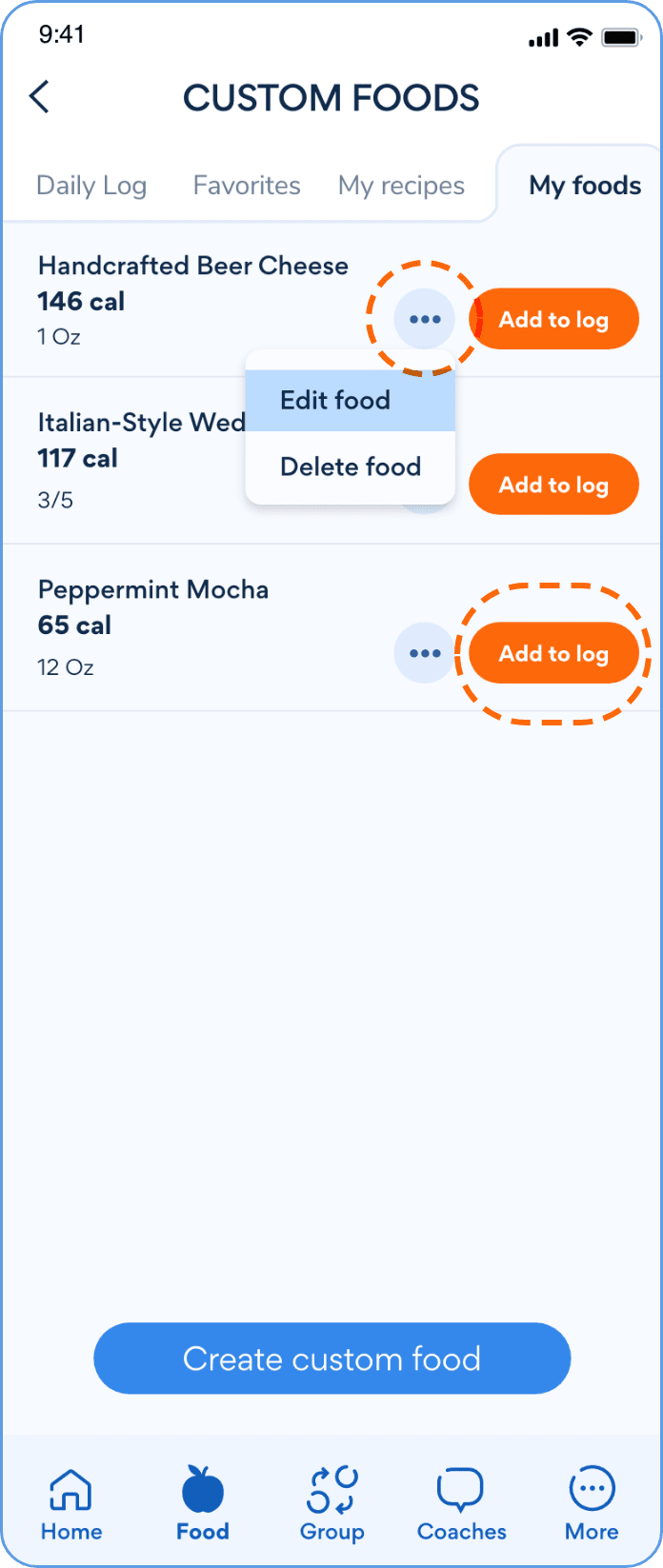
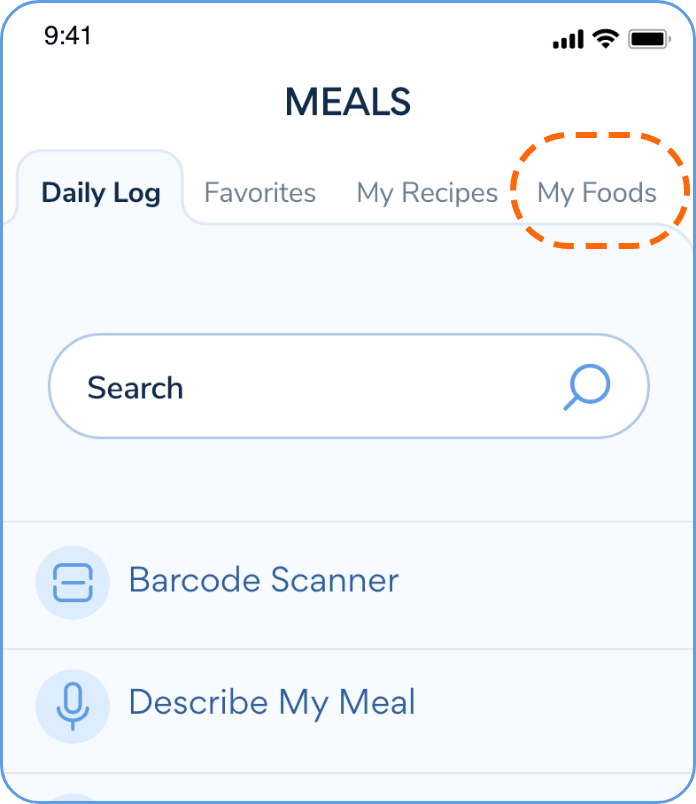
- From the Daily Log screen, go to My Foods.
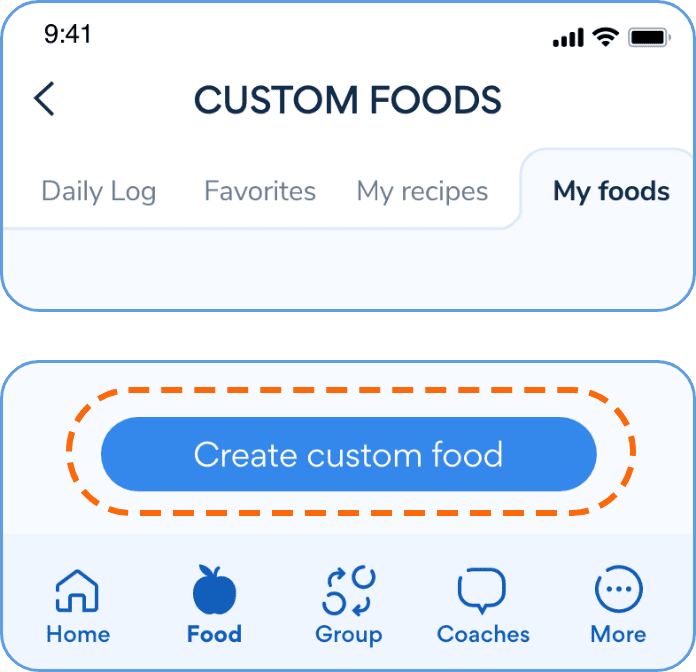
- Tap Create Custom Food.
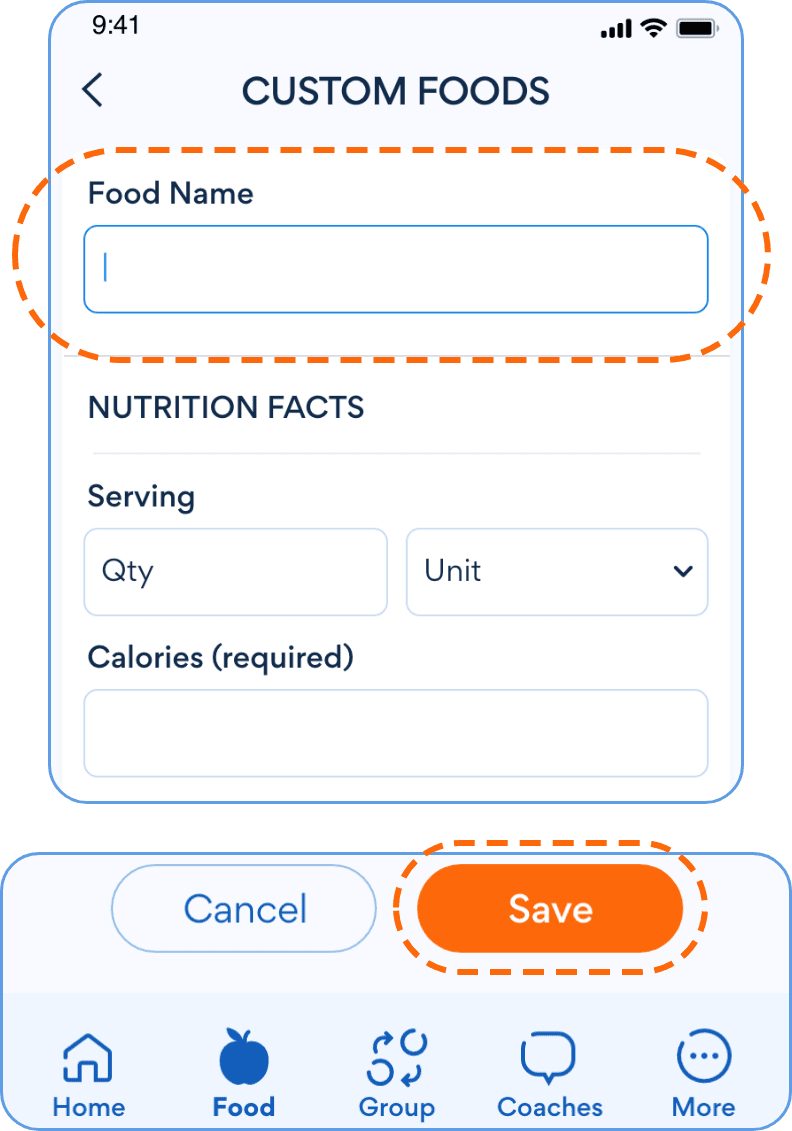
- Enter a name, serving size, and calories (required). You can add more nutrition info if you have it.
- Tap Save.
From the My Foods list, you can edit, delete, or add your custom food to a meal log.